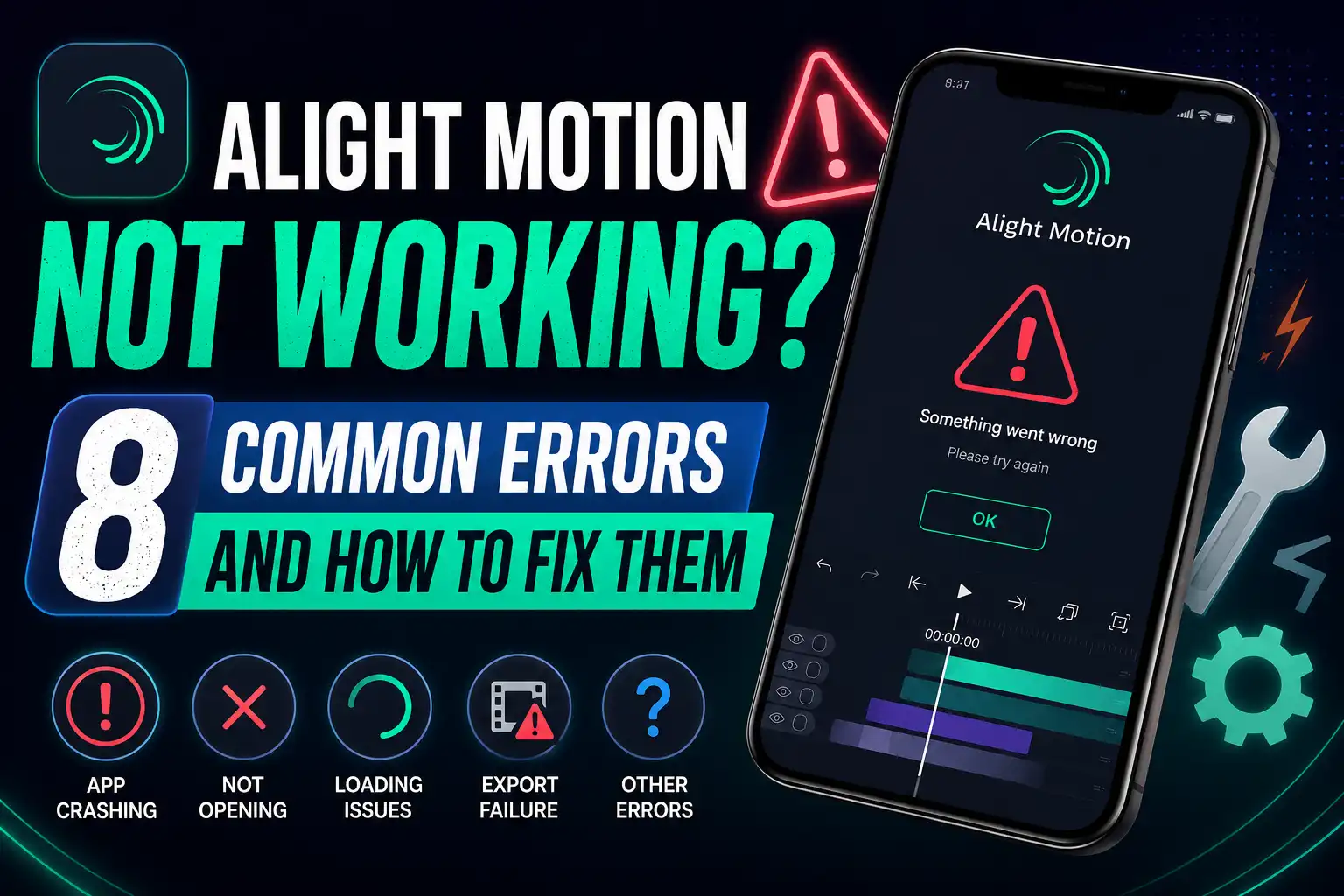
Alight Motion Not Working? 8 Common Errors and How to Fix Them
Alight Motion is one of the most powerful mobile editing apps available, but like any app, it can run into problems. The app might crash mid-project, refuse to open, get stuck during export, or lose a project you spent hours building.
Most of these issues have simple fixes. This guide walks through the eight most common Alight Motion errors, what usually causes each one, and exactly how to fix it, whether you’re on the official app or a mod version.
Most Alight Motion problems, including crashing, freezing, or failing to open, are caused by low storage space, outdated app versions, or corrupted cache data. Clearing the app cache, freeing up storage, and updating to the latest version fixes the majority of issues. For export or install failures specific to mod versions, redownloading the APK from a trusted source usually resolves it.
8 Alight Motion Common Errors and their fixes
1: App Crashing or Force Closing
Why it happens: This is usually caused by low RAM, a corrupted project file, an outdated app version, or too many effects and layers running at once in a single project.
How to fix it:
1: Close other apps running in the background to free up RAM.
2: Restart your phone, then reopen Alight Motion.
3: Go to your phone’s app settings, find Alight Motion, and clear its cache (not data, since that can delete your projects).
4: Check for an app update and install the latest version if available.
5: If one specific project keeps crashing, try duplicating it and removing a few heavy effects or layers to see if the crash stops.
If crashes only happen on one particular project, the file itself may be too heavy for your device. Try splitting the project into smaller parts.
2: App Not Opening At All
Why it happens: Usually a corrupted app installation, insufficient storage space, or an outdated Android/iOS version that no longer supports the app version you have installed.
How to fix it:
1: Restart your phone first. This solves more problems than people expect.
2: Check your available storage. Alight Motion needs free space to launch properly, not just to install.
3: Uninstall and reinstall the app. If you’re using a mod version, redownload the APK from your source, since the file may have partially corrupted during the first install.
4: Confirm your device’s operating system meets the app’s minimum requirements.
5: If you recently updated your phone’s OS, wait for an Alight Motion update, since major OS updates sometimes create temporary compatibility issues.
3: Export Getting Stuck or Failing
Why it happens: Export failures are usually tied to insufficient storage space, a project that’s too complex for your device to render, or a corrupted project file.
How to fix it:
1: Check your free storage. Exporting needs extra space beyond your project file size, sometimes double, especially for 4K exports.
2: Lower your export resolution one step (for example, from 4K to 1080p) and try again.
3: Reduce the export frame rate if you’re using 60fps, since 30fps requires less processing.
4: Close background apps before exporting to free up processing power.
5: If the export consistently fails on one project, try exporting in smaller sections and combining them later
5: Lag During Editing
Heavy lag while editing is a common issue, but we’ve already covered this in detail with device-specific fixes and settings adjustments. Check out our full guide: Why is Alight Motion So Laggy for step-by-step solutions.
5. Black Screen or Preview Not Showing
Why it happens: This is often a graphics rendering issue, caused by a heavy project, an outdated GPU driver on emulators, or a temporary app glitch.
How to fix it:
1: Tap away from the timeline and back to force the preview to refresh.
Restart the app completely, not just minimize it.
2: If you’re using Alight Motion on PC through an emulator, update your emulator’s graphics settings or switch rendering modes (OpenGL vs DirectX) in the emulator settings.
3: Reduce the number of visual effects layered on the clip causing the black screen.
4: Check that your device meets the minimum RAM and GPU requirements listed on the app’s system requirements page.
6: Project Files Not Saving or Lost Projects
Why it happens: This usually happens due to the app closing unexpectedly before an auto-save, storage running out mid-edit, or accidentally clearing app data instead of just cache.
How to fix it:
1: Check if the project appears under a “Recently Deleted” or backup folder within the app, if your version includes one.
2: Never clear “app data” from your phone’s settings, only “cache.” Clearing data deletes local projects permanently.
3: Turn on auto-save if your app version supports it, found in the app’s general settings.
4: Regularly export finished sections of long projects as a backup, so a crash doesn’t cost you the entire project.
5: If you back up your phone regularly, check if a recent backup includes the lost project file.
7: App Not Installing (Mod APK Specific)
Why it happens: This is common with modded APK files, and usually comes down to “Install from Unknown Sources” being disabled, a corrupted download, or a conflict with an existing official version of the app already on your device.
How to fix it:
1: Go to your phone’s settings, enable “Install from Unknown Sources” for your browser or file manager app.
2: Uninstall any existing version of Alight Motion (official or mod) before installing a new mod APK, since conflicting signatures often block installation.
3: Redownload the APK file, since incomplete downloads are a common cause of installation failure.
4: Check that your Android version meets the mod APK’s minimum requirement.
5: Free up storage space, since installation can fail silently if your device is nearly full.
8: Audio and Video Out of Sync After Export
Why it happens: Sync issues usually happen when a project mixes clips with different frame rates, or when speed changes are applied without adjusting the linked audio track.
How to fix it:
1: Check that all video clips in your project use the same frame rate before combining them.
2: If you applied a speed change to a clip, make sure the audio track attached to it was adjusted at the same time, not left at its original speed.
3: Re-export at a standard frame rate, like 30fps, if your original clips were mixed between 24, 30, and 60fps.
4: If sync issues only appear after export (not during editing), try exporting at a slightly lower resolution to rule out a rendering glitch.
5: For long projects, export in smaller segments and check sync on each before combining the final file.
Tips to Prevent Alight Motion Errors
Quick Reference Table
| Problem | Most Common Cause | Fastest Fix |
|---|---|---|
| App crashing | Low RAM or heavy project | Close background apps, clear cache |
| App not opening | Corrupted install or low storage | Reinstall app, free up storage |
| Export stuck/failing | Storage or project complexity | Lower resolution, export in sections |
| Black screen | Rendering glitch or heavy effects | Restart app, reduce effects layers |
| Lost projects | App data cleared or crash before save | Check backups, avoid clearing app data |
| Install failure (mod APK) | Unknown Sources disabled or corrupted file | Enable Unknown Sources, redownload file |
| Audio/video sync issues | Mixed frame rates or unadjusted speed | Match frame rates, re-export |
Frequently Asked Questions